Help Center / HRMS / Get started
Add an employee
Add an employee with their pay, bank and EPF/SOCSO details, and optionally invite them to log in.
3 min read
What you'll learn
- What payroll needs from each employee
- How to give someone their own login
Step by step
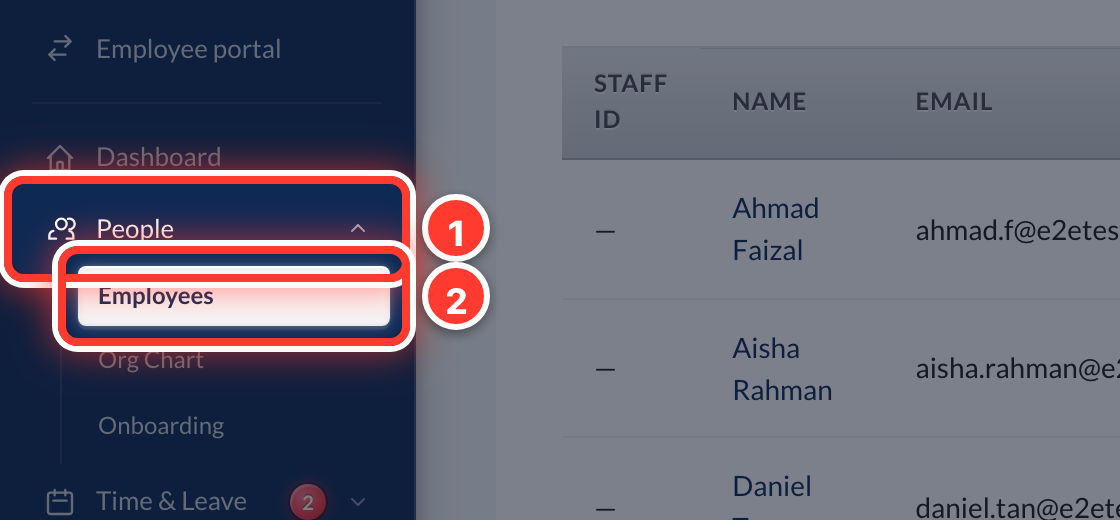 1Open People in the sidebar, then Employees.
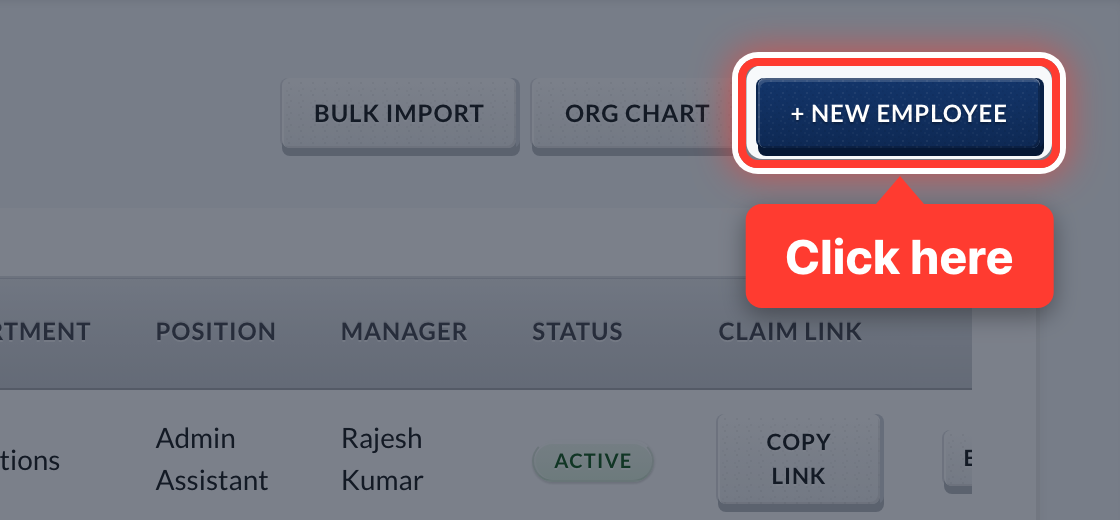 2Press + New Employee.
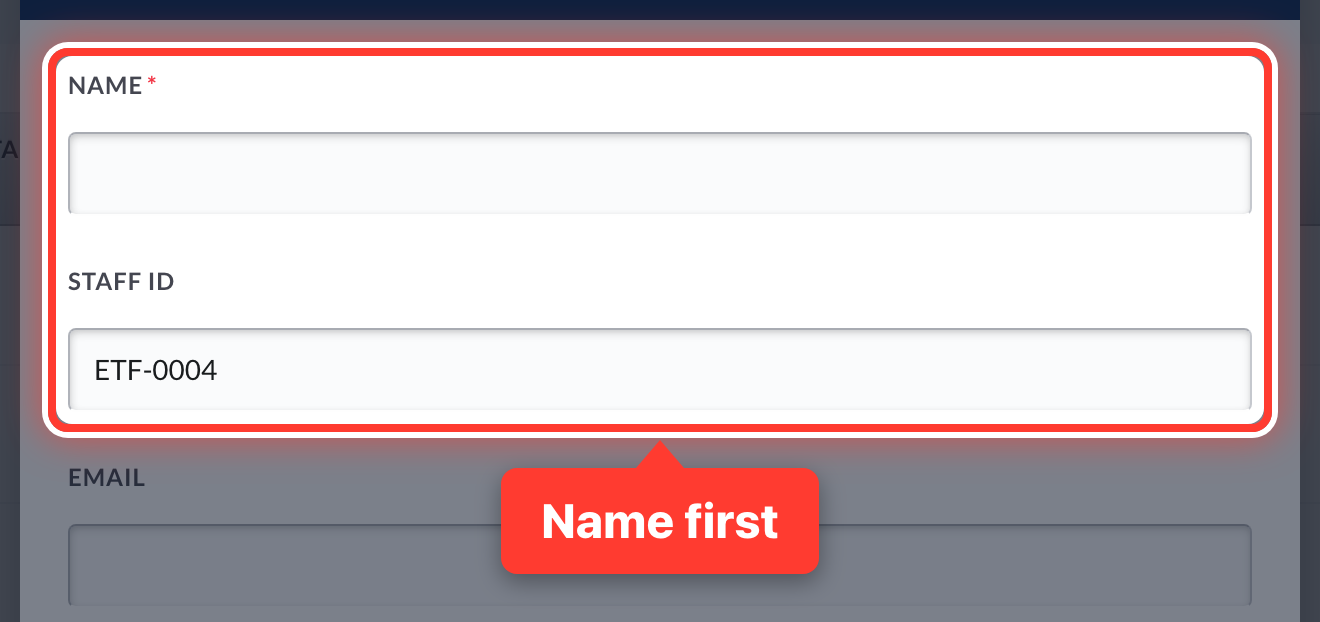 3Fill in their name. The staff ID is optional.
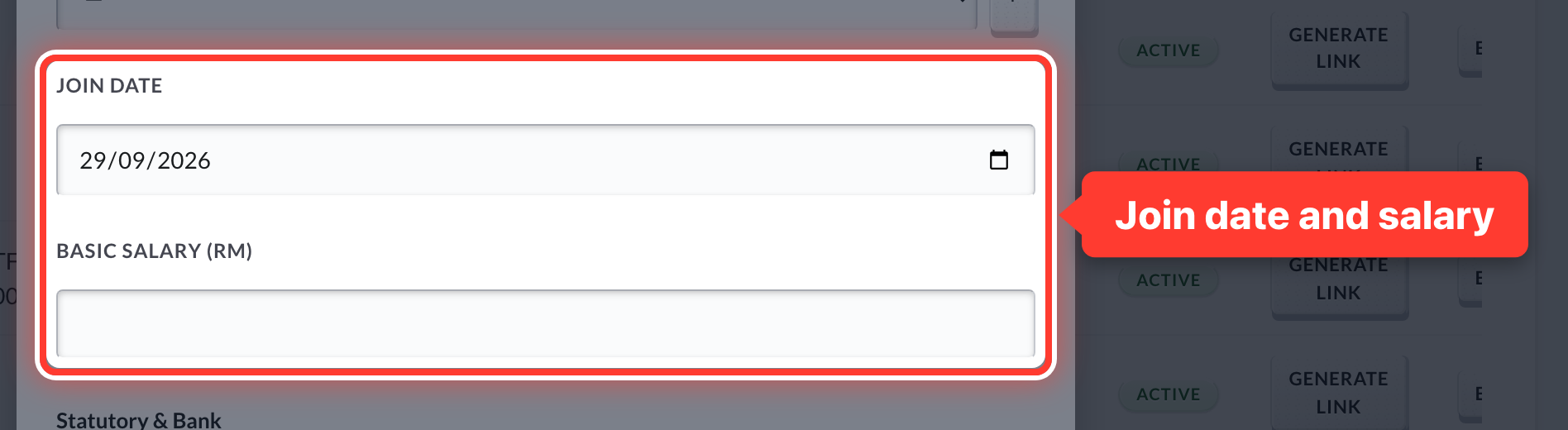 4Then their join date and basic salary.
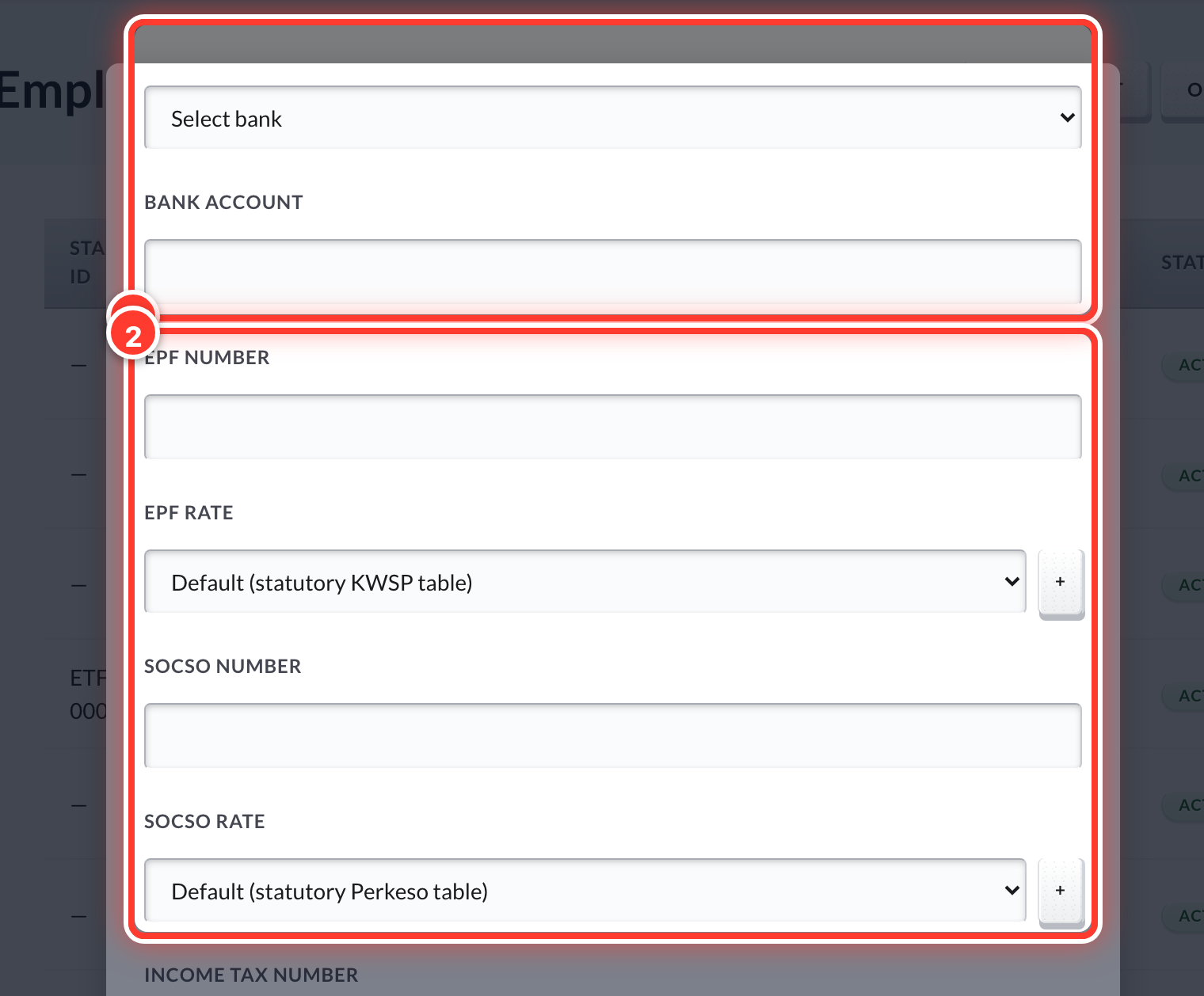 5Add their bank account and their EPF and SOCSO numbers. Payroll needs these.
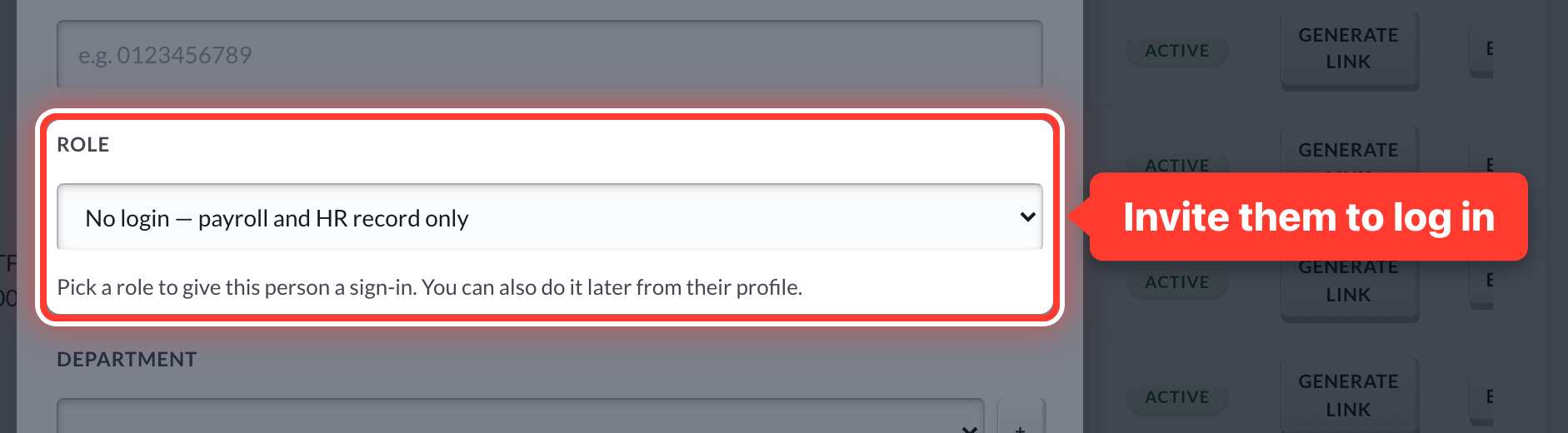 6Want them to log in? Pick a Role and Fortura emails them an invite to set their own password. Leave it on No login for a payroll-only record.
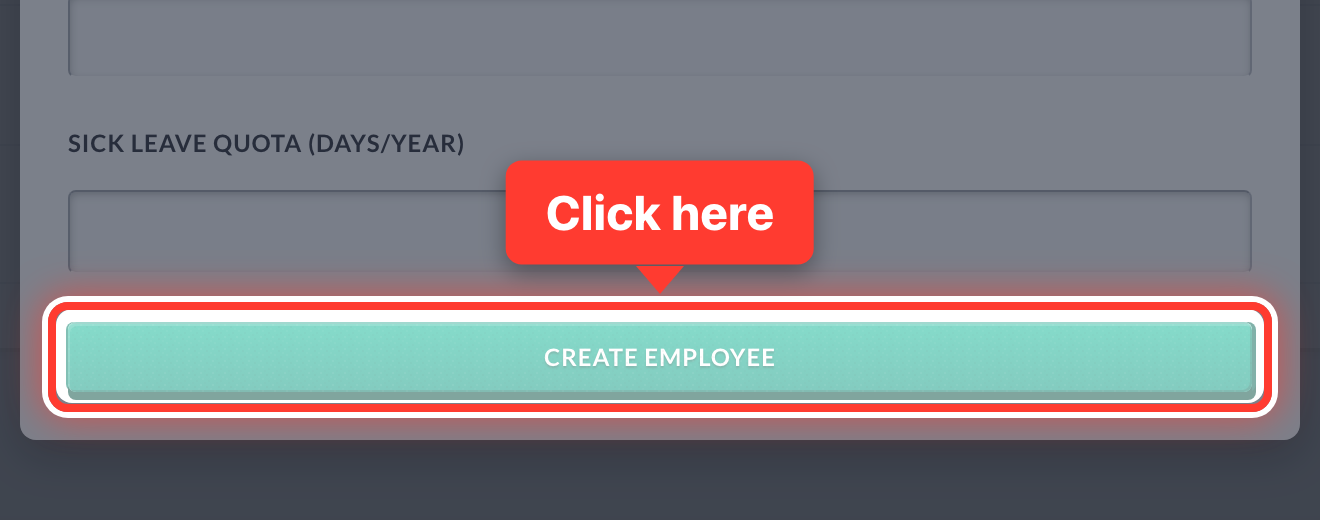 7Press Create Employee.
Got a question or stuck on something? Our team is happy to help.
Contact support