Help Center / HRMS / Payroll
Submit payroll and pay your staff
Submit a checked payroll run for posting; once approved it is in your books and the bank file pays everyone.
3 min read
What you'll learn
- Hand a payroll run to your accountant
- Pay everyone with the bank file
Step by step
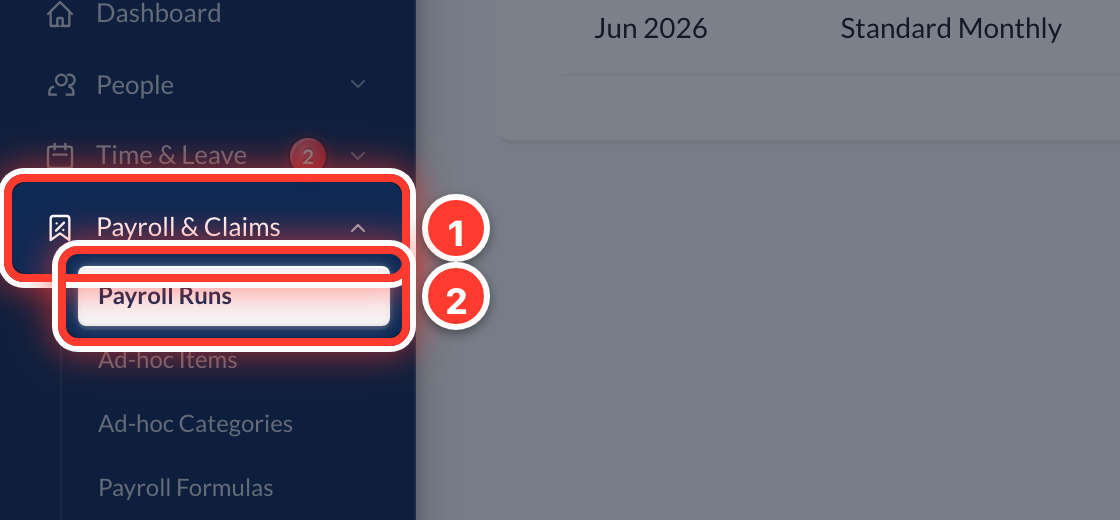 1Open Payroll & Claims in the sidebar, then Payroll Runs.
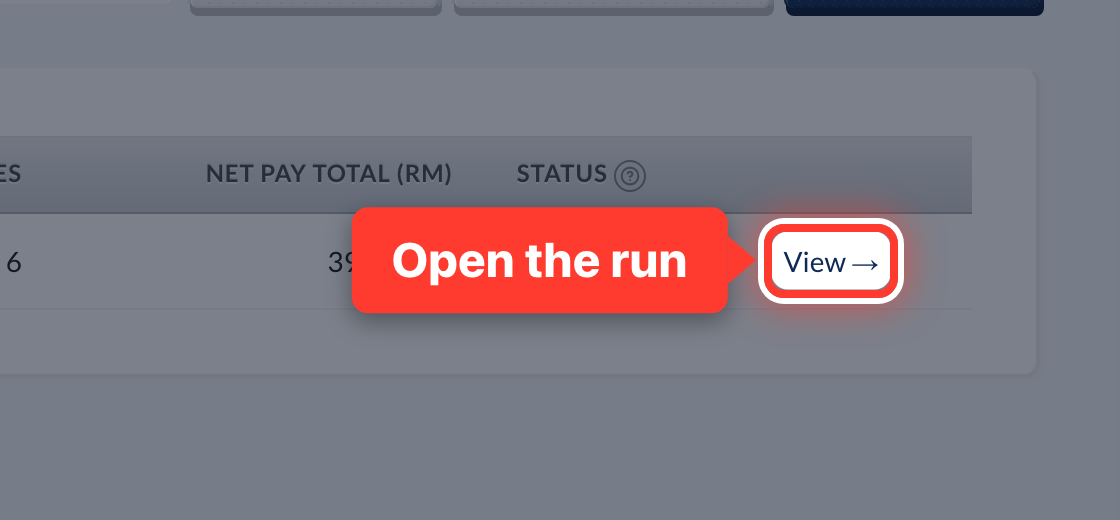 2Press View → on the month.
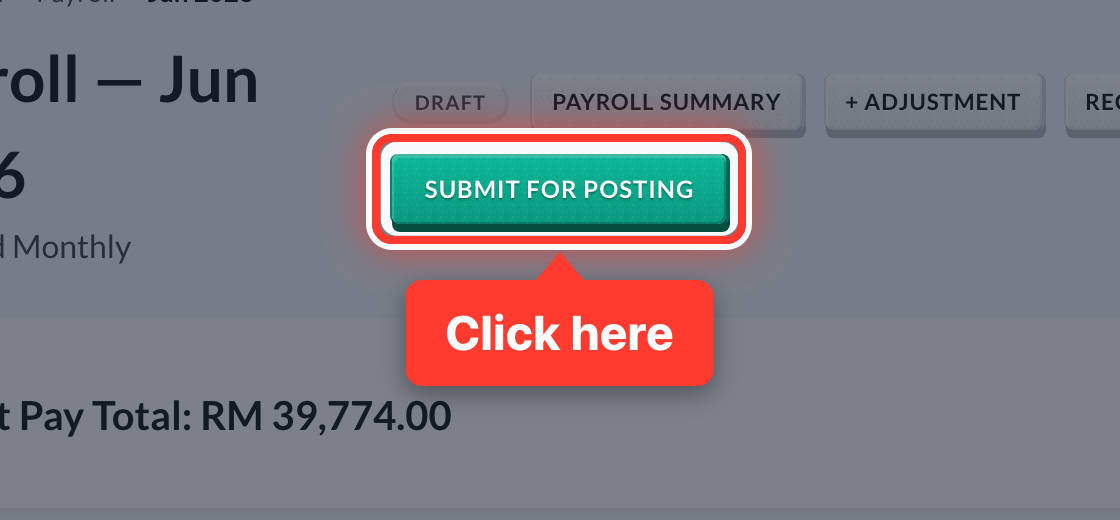 3When every payslip looks right, press Submit for Posting.
- 4Your accountant — or you, as owner — reviews the entry and presses Approve & Post JV. That puts the salaries in your books.
- 5Need a change after submitting? Press Recall to Draft, or the accountant can send it back.
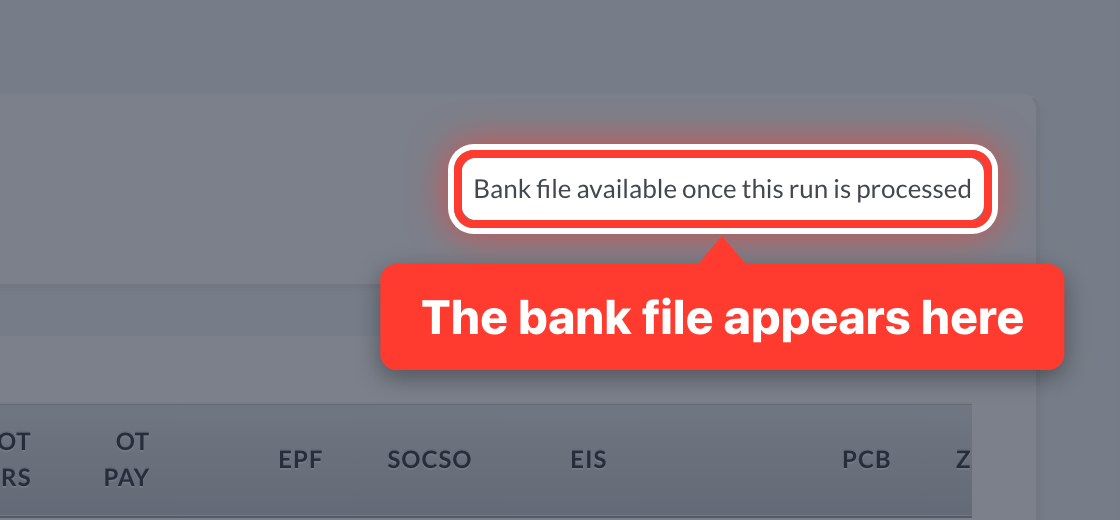 6Once it is approved, press Download Bank File and upload it to your bank to pay everyone at once.
Got a question or stuck on something? Our team is happy to help.
Contact support