Help Center / Bookkeeping / Quick start
Check and approve an invoice
Check what the AI read, pick the DR and CR GL, and approve to post it to your books.
3 min read
What you'll learn
- What to check before you approve
- What DR GL and CR GL mean here
Step by step
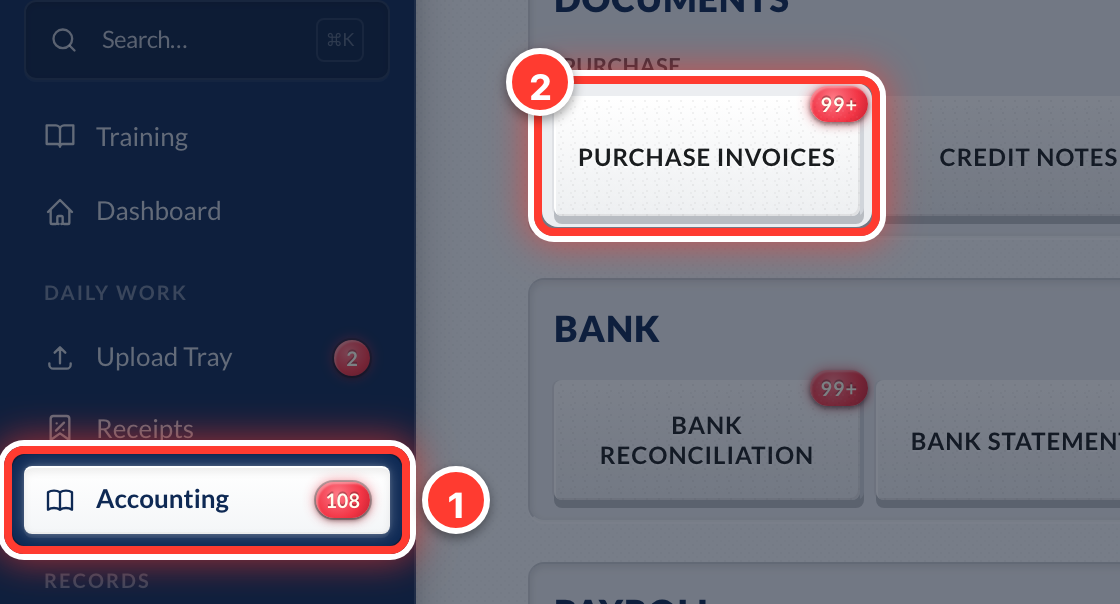 1Open Accounting in the sidebar, then Purchase Invoices.
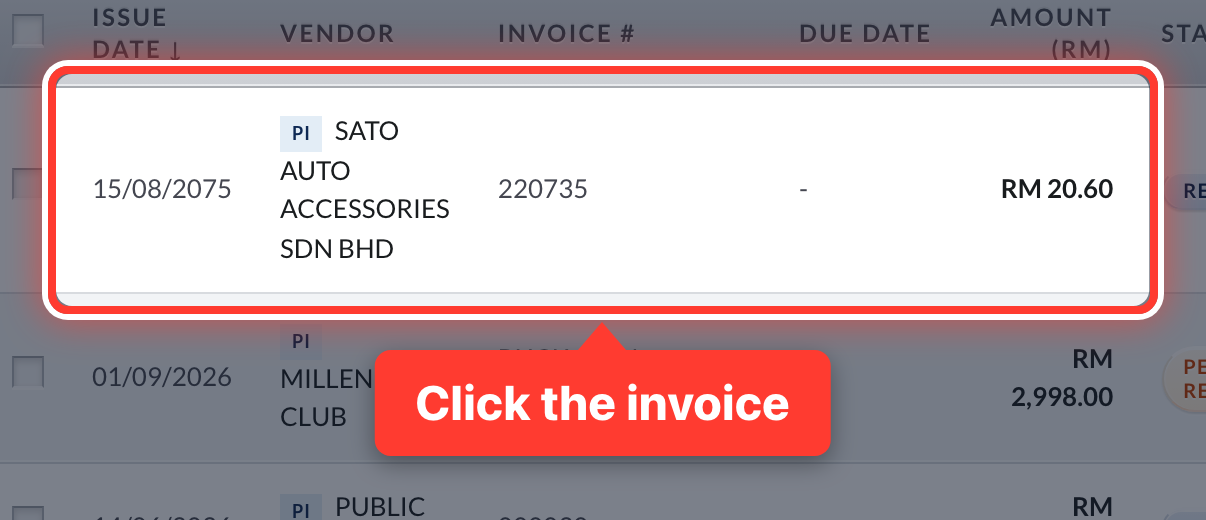 2Click the invoice.
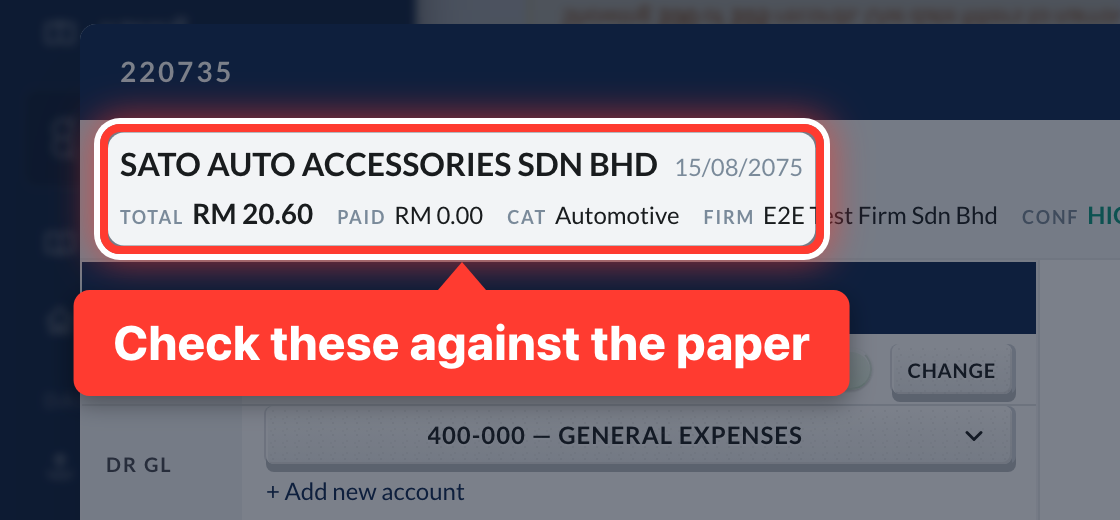 3Check the supplier, invoice number, date and total against the paper.
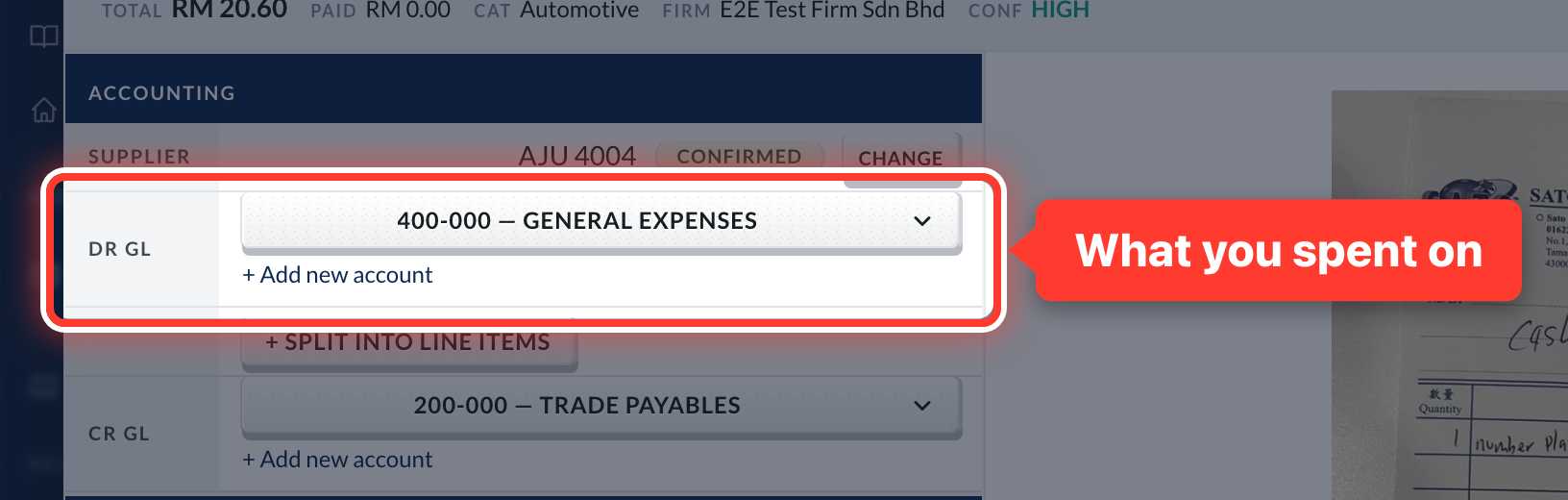 4DR GL is what you spent on (for example, Office Supplies). Fortura suggests one from last time.
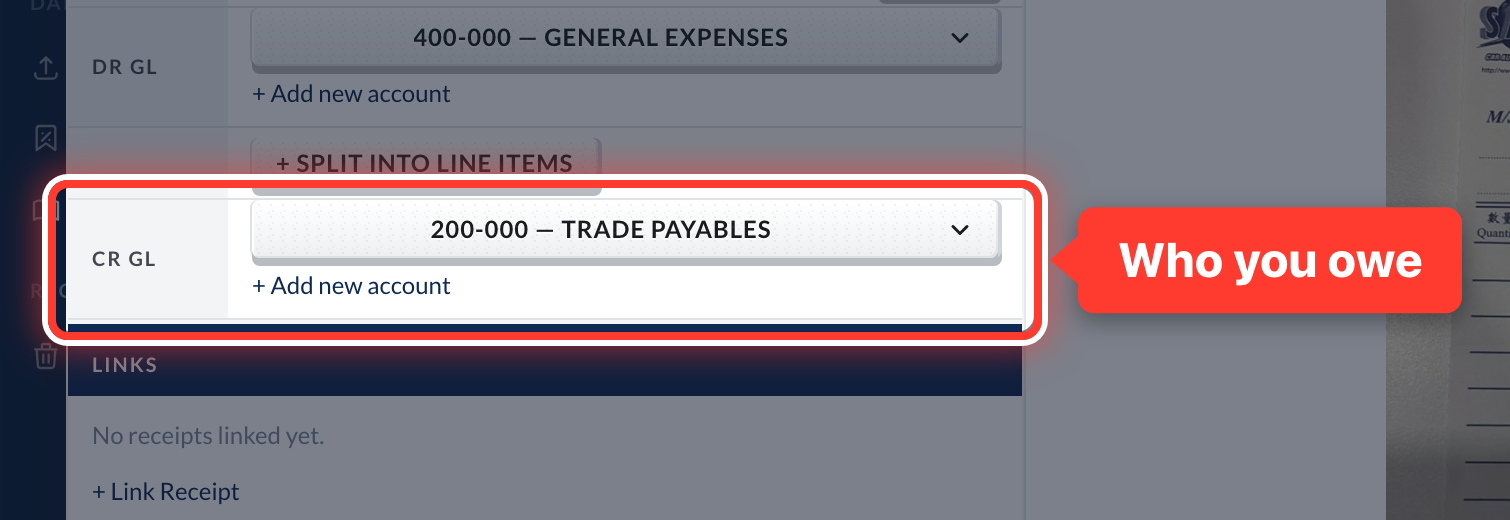 5CR GL is who you owe — usually Trade Payables.
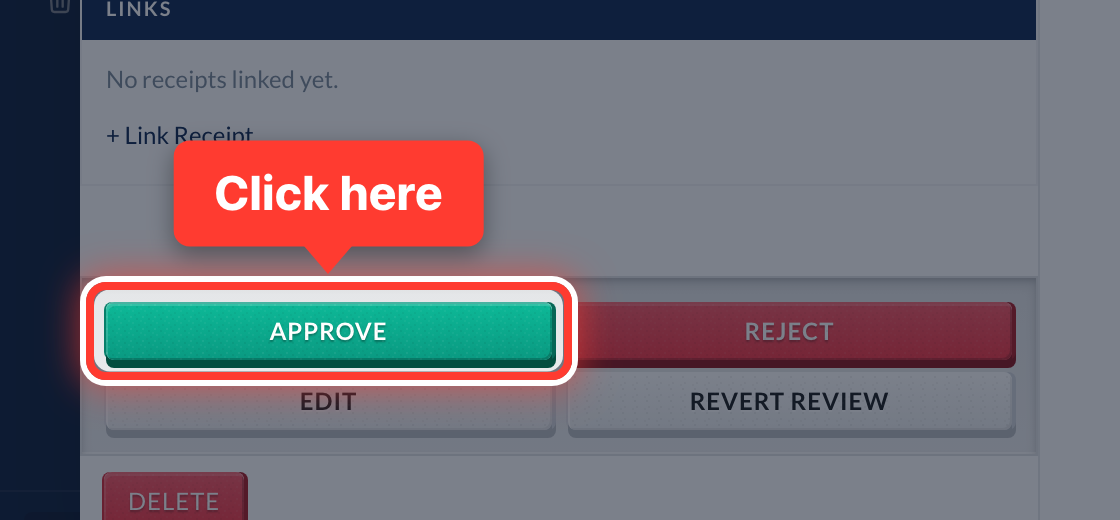 6Press Approve.
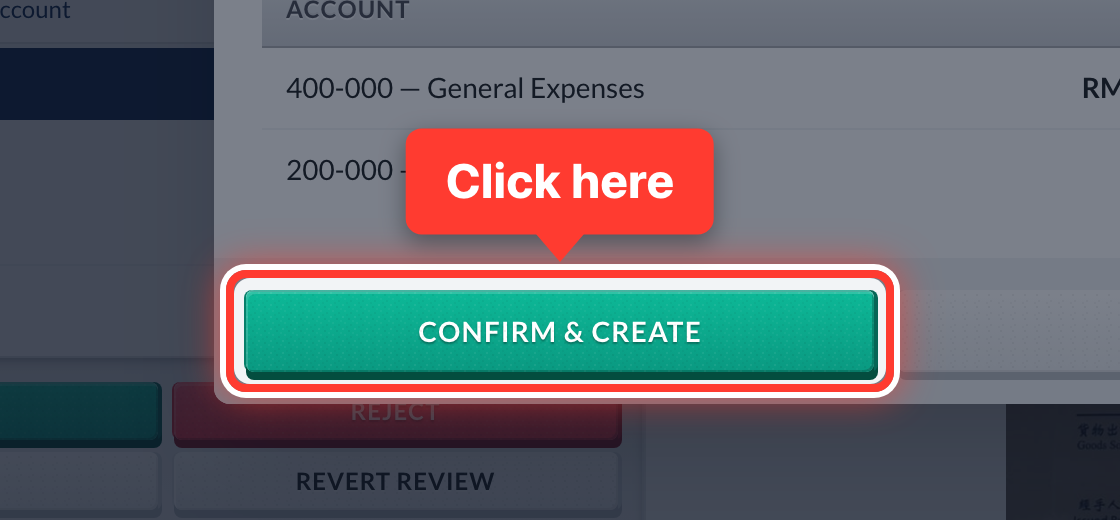 7Fortura shows the entry it will post. Press Confirm & Create to put it in your books.
- 8If Fortura thinks it has seen this invoice before, it warns you — you decide.
Got a question or stuck on something? Our team is happy to help.
Contact support