Help Center / Bookkeeping / Quick start
Connect your bank and match payments
Upload your monthly bank statement PDF and match each bank line to its invoice.
4 min read
What you'll learn
- Upload a bank statement
- Match a bank line to its invoice
Step by step
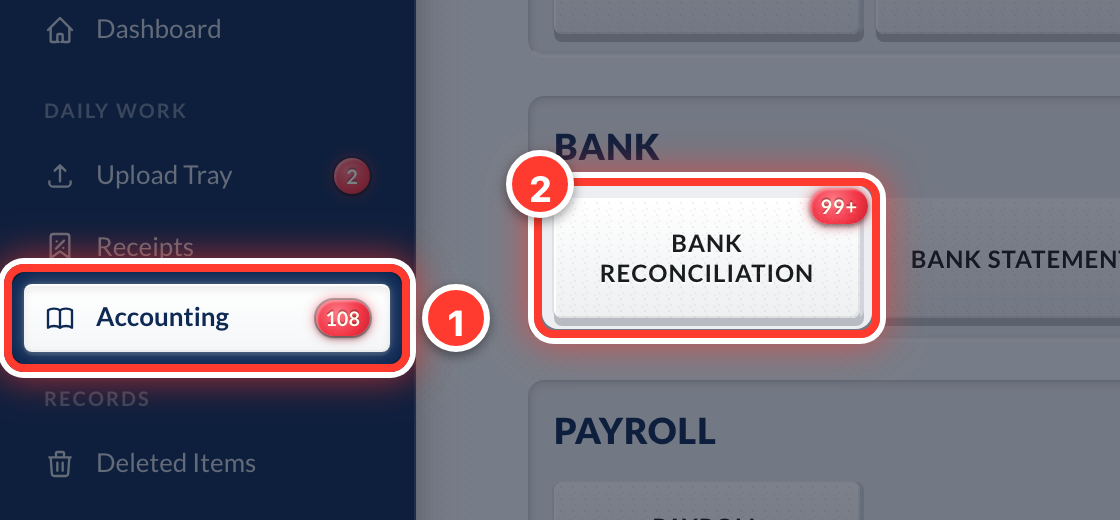 1Open Accounting in the sidebar, then Bank Reconciliation.
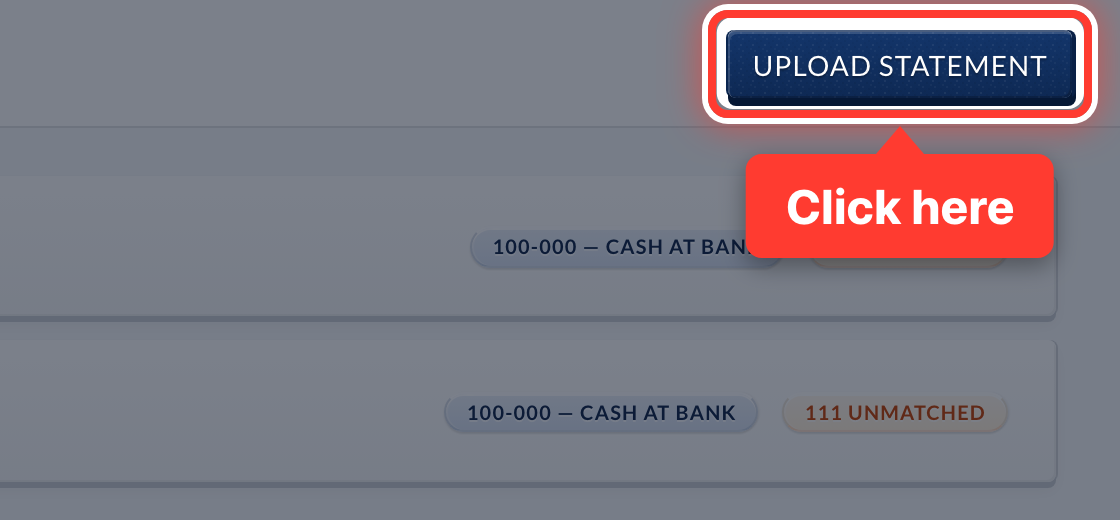 2Press Upload Statement. Use the monthly PDF your bank emails you.
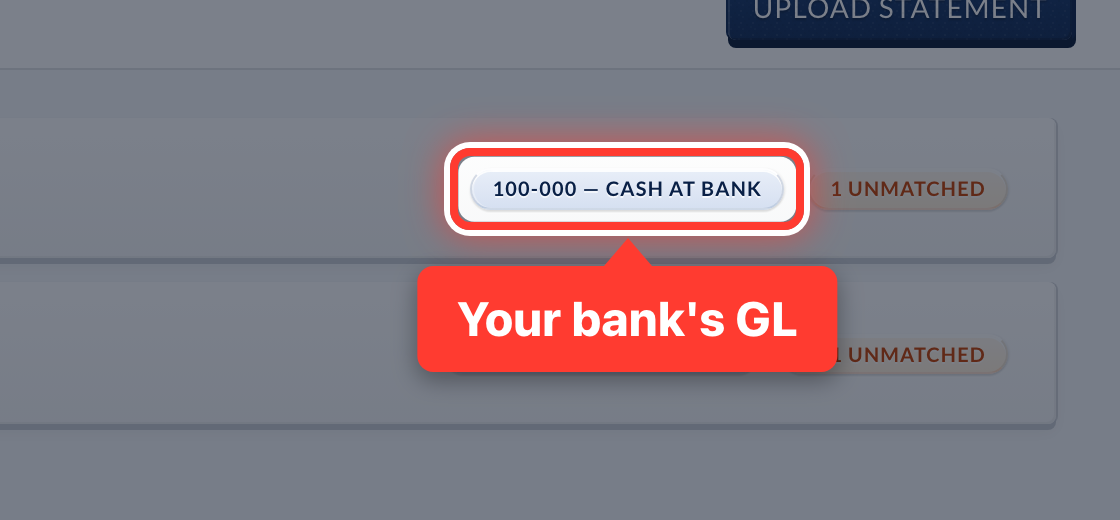 3Give your bank its GL — usually Cash at Bank. Fortura remembers it for next month.
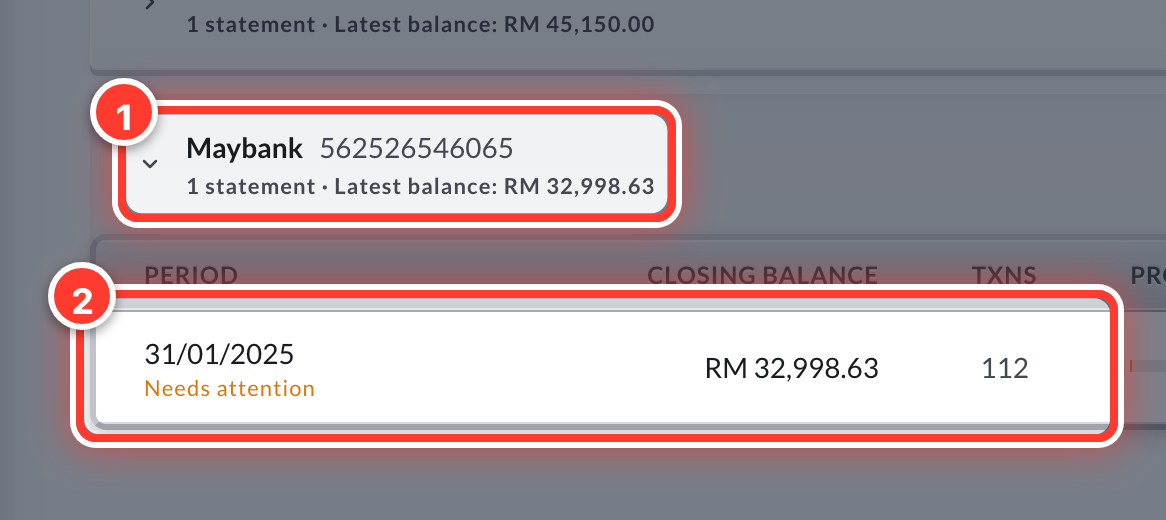 4Click your bank, then its statement for the month.
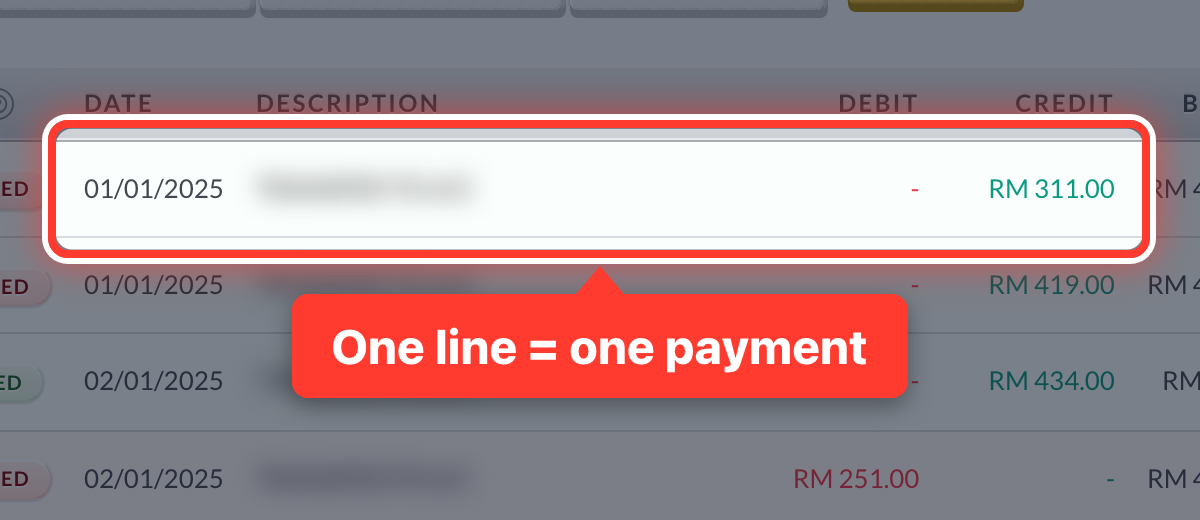 5Each line is one payment in or out.
- 6Fortura suggests the invoice each line pays. Check it and press Confirm.
- 7For a line with no invoice, create a voucher from the line instead — see Record a payment without an invoice.
- 8Matching is what marks an invoice as paid.
Got a question or stuck on something? Our team is happy to help.
Contact support